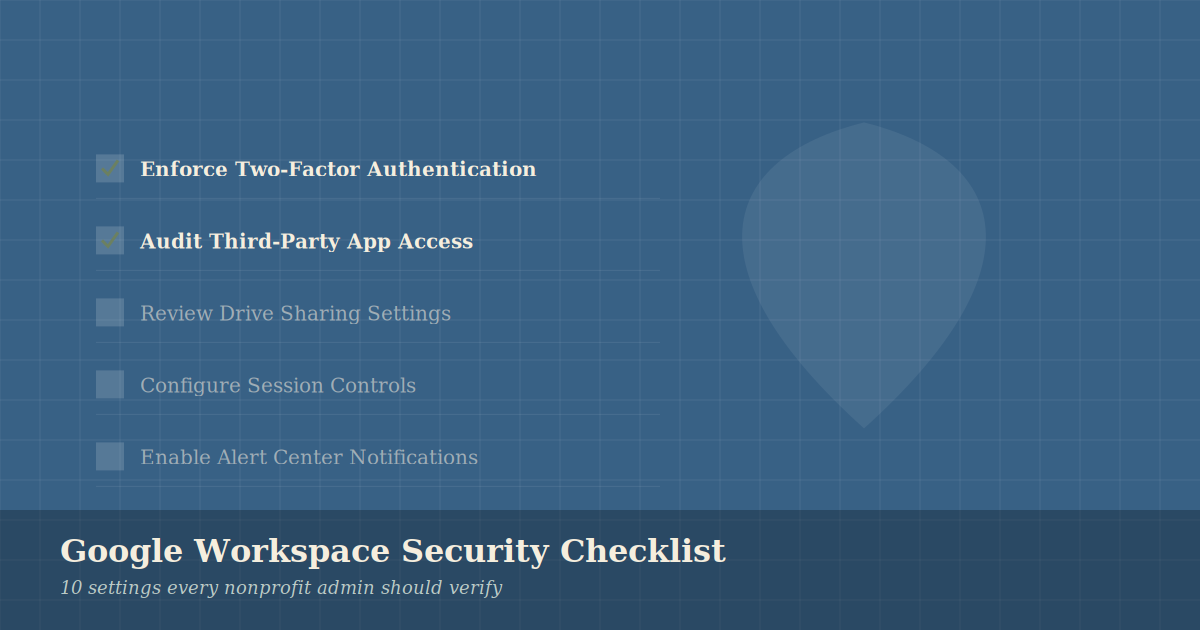
The 10-Point Google Workspace Security Checklist for Small Nonprofits
Google Workspace is one of the best things that ever happened to nonprofit IT. The Google for Nonprofits program gives qualifying organizations access to powerful collaboration tools at no cost — but the default security settings aren’t configured for an organization that handles donor data, grant information, or vulnerable populations.
Here’s what to check. Most of these take less than five minutes to fix.
1. Enforce Two-Factor Authentication
Where: Admin Console → Security → Authentication → 2-step verification
This is the single highest-impact change you can make. Require 2-step verification for all users — not just admins. Set an enrollment period of 1–2 weeks and then enforce it. Phishing attacks that steal passwords are defeated entirely when 2FA is in place.
What to watch for: Users who have set up 2FA via SMS text message. SMS 2FA is better than nothing but vulnerable to SIM swapping. Encourage Google Authenticator or a hardware key for anyone with admin access.
2. Audit Third-Party App Access
Where: Admin Console → Security → API Controls → Manage Third-Party App Access
Every time a staff member clicks “Sign in with Google” on an external app, that app gets some level of access to your organization’s data. Over time this accumulates — apps that were used once, abandoned tools, services from vendors you no longer work with.
Review the list. For anything you don’t recognize or no longer use, revoke access. Set new third-party app access to require admin approval before it’s granted.
3. Turn Off “Less Secure App” Access
Where: Admin Console → Security → Less secure apps
Older apps that use basic username/password authentication (rather than OAuth) are a security risk. Unless you have a specific legacy system that requires it, turn this off. Modern apps don’t need it.
4. Review Sharing Settings for Google Drive
Where: Admin Console → Apps → Google Workspace → Drive and Docs → Sharing settings
Check two things: whether users can share files outside your organization, and whether “anyone with the link” sharing is allowed. For most nonprofits, external sharing is legitimate — but you want it to be intentional, not accidental. Consider requiring that shared links expire, and disabling the ability to share with “anyone on the internet” by default.
5. Enable Google Workspace Alert Center Notifications
Where: Admin Console → Security → Alert Center
Google will alert you to suspicious activity — login attempts from unusual locations, potential phishing emails, accounts that may have been compromised. Make sure someone is receiving these alerts and actually reading them. Route them to a shared inbox or your IT contact, not just the primary admin account.
6. Audit Admin Accounts
Where: Admin Console → Account → Admin roles
How many people in your organization have Super Admin access? In most small nonprofits the answer is “more than we realized.” Super Admin access should be limited to one or two people who actually need it. Create custom admin roles with limited permissions for anyone who needs partial admin access (like an HR person who manages user accounts).
7. Configure Session Controls
Where: Admin Console → Security → Google Session Control
By default, users stay signed into Google indefinitely. Setting a session length of 8–12 hours means that if a device is lost or stolen, the attacker’s window is limited. For admin accounts, consider an even shorter session length.
8. Enable Advanced Protection for High-Risk Users
Where: Admin Console → Security → Advanced Protection Program
Executive directors, finance staff, anyone with access to donor databases or grant systems — these are high-value targets. Google’s Advanced Protection Program adds extra layers of security for accounts that are most likely to be targeted. It requires a physical security key but provides significantly stronger protection.
9. Review Gmail Spam and Phishing Filters
Where: Admin Console → Apps → Google Workspace → Gmail → Safety
Make sure Enhanced pre-delivery message scanning is enabled. Enable the “Protect against inbound emails spoofing your domain” setting. These catch a meaningful percentage of phishing attempts before they reach staff inboxes.
10. Check Your Data Recovery Options
Where: Admin Console → Account → Account settings
What happens if your primary admin account is compromised or the person who manages it leaves the organization? Make sure recovery email and phone are set, that at least two people have Super Admin access, and that you’ve documented your admin credentials somewhere secure (a password manager, not a sticky note).
A Note on Google Vault
If your organization is on a Business Standard or higher plan (or uses the nonprofit equivalent), Google Vault lets you retain, archive, and export email and Drive content for legal or compliance purposes. If you handle any data that might be subject to retention requirements — grant records, donor information, program data — it’s worth understanding what Vault can do for you.
Need Help?
If you’re not sure where to start or don’t have someone in-house to work through these settings, this is exactly the kind of audit we help nonprofits with. Get in touch — we’re based in Traverse City and serve organizations across Michigan and beyond.